Sound and Bluetooth, one hotkey away
1MachineTool 1.4.0 gives Sound and Bluetooth their own pages on Mac and Windows and puts both in the launcher, so switching a mic or reconnecting headphones takes one hotkey.
· 6 min read · 1MachineTool Team
Your AirPods connect to the iPad in the next room. The meeting starts, the microphone is the laptop's built-in one, and the volume slider in the menu bar only moves the output. To fix any of it you open System Settings, find the Sound pane, switch the input, then go to the Bluetooth pane and reconnect the headphones. On Windows it's the same hunt, spread across Settings and the old Control Panel.
None of that is hard. It's just slow, and it happens at the worst moment.
What changed
1MachineTool 1.4.0 gives Sound and Bluetooth their own pages, and puts both in the launcher. Now you can switch your microphone, set a volume or reconnect your headphones from one hotkey, without opening the system settings at all.
The release also reorganises the sidebar around where things happen, folds Today and What changed? into one page, and lets Share Screen open a machine in the remote client your computer already has.
How it works in practice
Sound: output, microphone and alerts in one place
The Sound page has an Output section and an Input section. Pick the speaker or the microphone in one click, set each one's volume, or mute it. On a Mac there is also an Alert volume slider, which sets how loud alerts play as a share of the output volume, and a Play a test sound button so you can check you picked the right speaker before the call starts.
Volume by app and speaker groups used to sit in a tab of Display & Audio. They live on the Sound page now. Per-app volume needs macOS 14.2 or later; on older versions the page says so instead of showing a slider that does nothing.
Bluetooth: connect, disconnect, forget
The Bluetooth page lists My devices with their battery level. Connect or disconnect a paired device, or forget one you no longer use. You can turn Bluetooth on or off from the same page, and if switching it off would take your keyboard or mouse with it, 1MachineTool asks first with a Turn Bluetooth off? warning.
Pairing a brand-new device works differently on each system:
- On Linux, Pair a new device finds devices in pairing mode nearby and pairs them from the page.
- On a Mac, pairing opens System Settings, because that is where macOS shows the code a keyboard or headset may ask you to type.
- On Windows, you can find and pair new devices from the page. Windows only lets apps connect and disconnect headphones and speakers; it keeps keyboards and mice connected itself, and the page tells you that instead of offering a button that can't work.
Both of them from the launcher
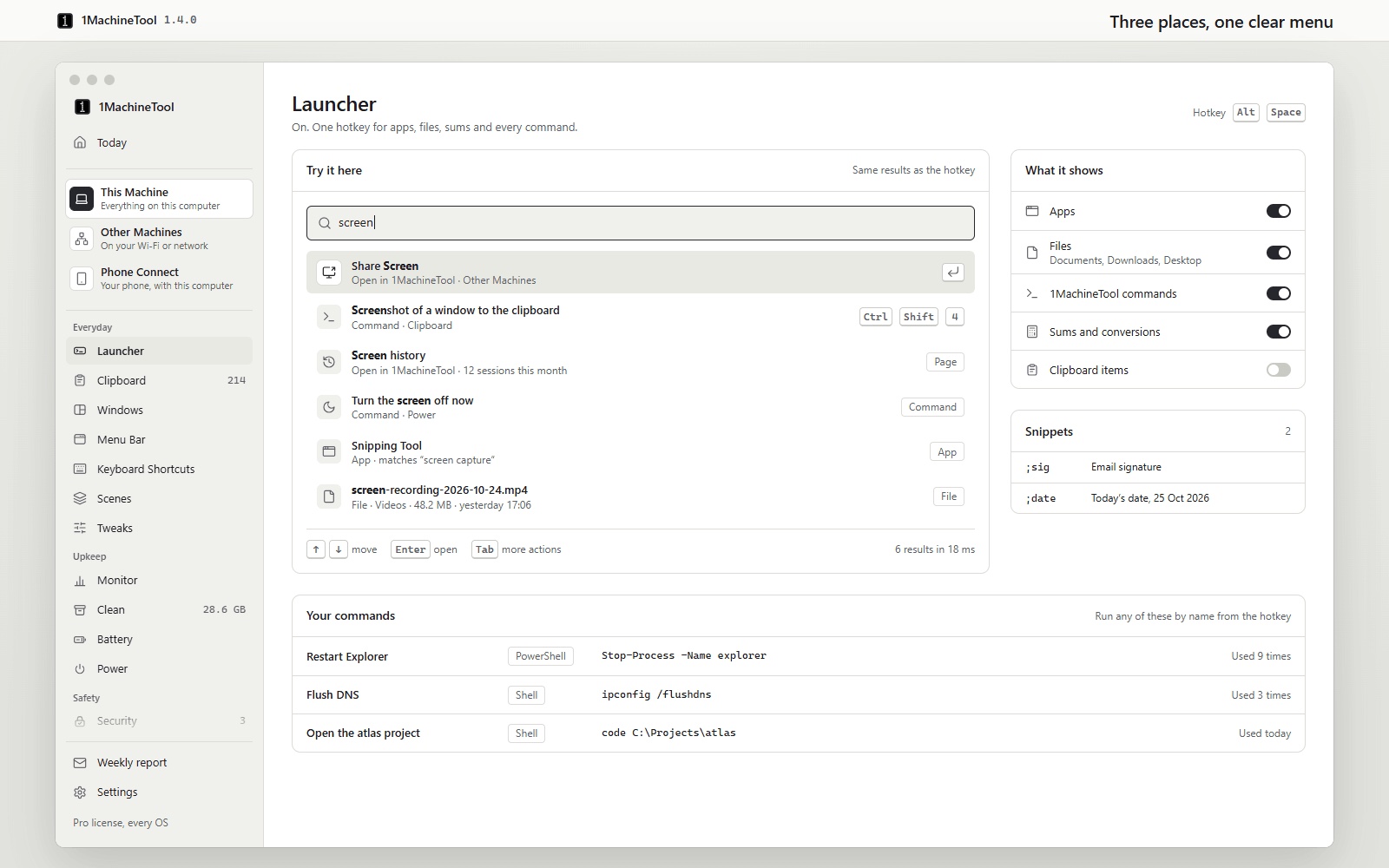
The launcher already ran commands and opened files. In 1.4.0 it also understands sound and Bluetooth. Type volume 40, louder or mute mic, or type a speaker's name to switch to it. Type AirPods to connect or disconnect them, or bluetooth off.
That is the fastest version of the opening scene: hotkey, AirPods, Enter, and the headphones are back on this computer.
Windows gets the same pages
Sound and Bluetooth are not Mac-only. On Windows, the Sound page lists your outputs and microphones with their volume and mute, the default device, and volume by app. The Bluetooth page turns the radio on or off, shows paired devices with their battery, forgets them, and finds and pairs new ones.
A sidebar sorted by where things happen
The sidebar now opens with three cards that never scroll away, and each one says what's inside:
- This Machine: everyday tools, upkeep, safety and hardware.
- Other Machines: your machines, Share Screen, sending files, keyboard and mouse, and screen history.
- Phone Connect: pairing a phone, Phone lock and the hotspot.
Pick one, and its pages list underneath. Display & Audio is now called Displays, with brightness, presets, Night Shift, refresh rate and arrangement; old links to its Sound and Bluetooth tabs open the new pages.
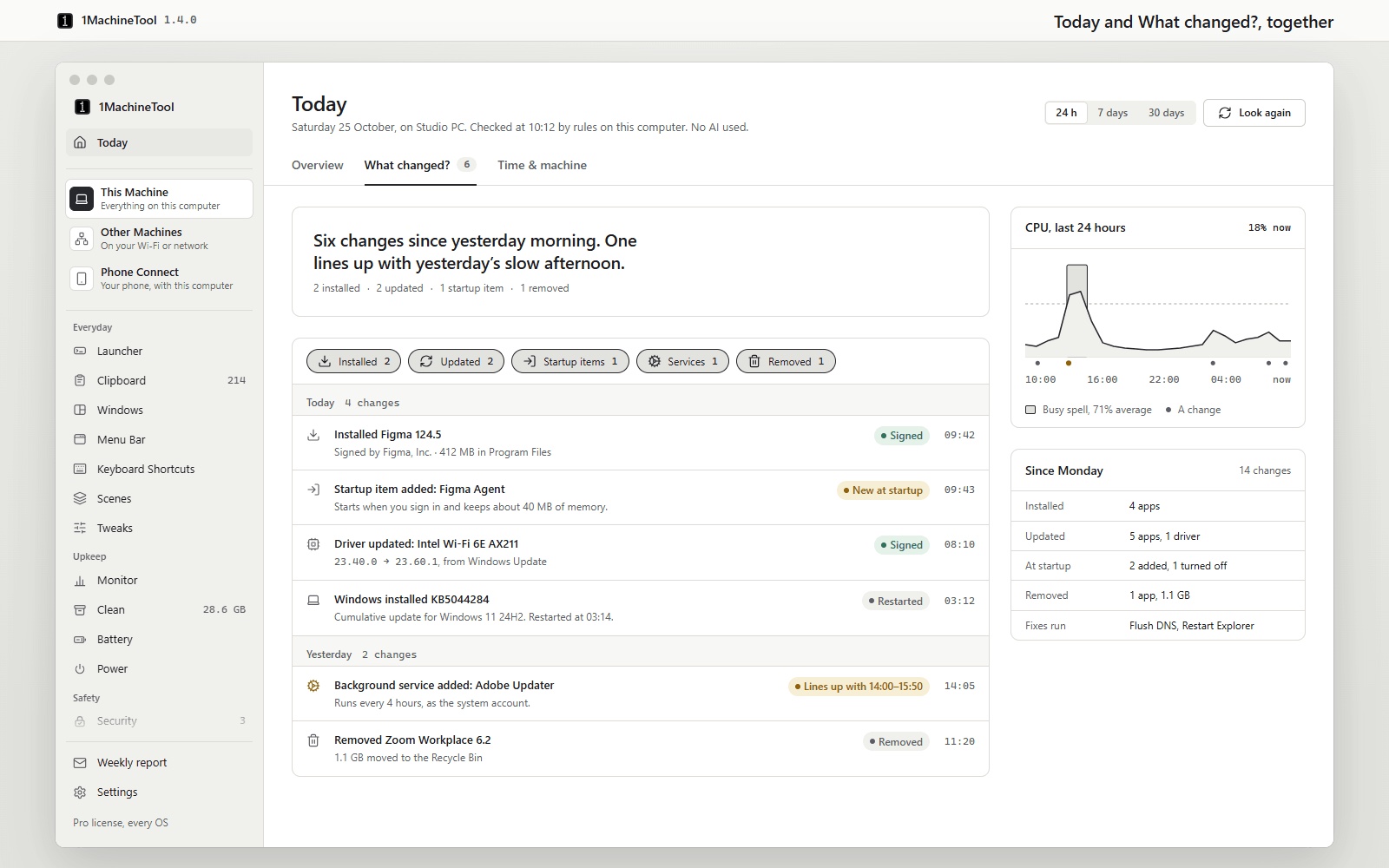
Today also absorbs What changed?. Overview, What changed? and Time & machine are now tabs of one page, so "is my computer OK?" and "what did something install last night?" are one click apart.
Share Screen: open machines your own way
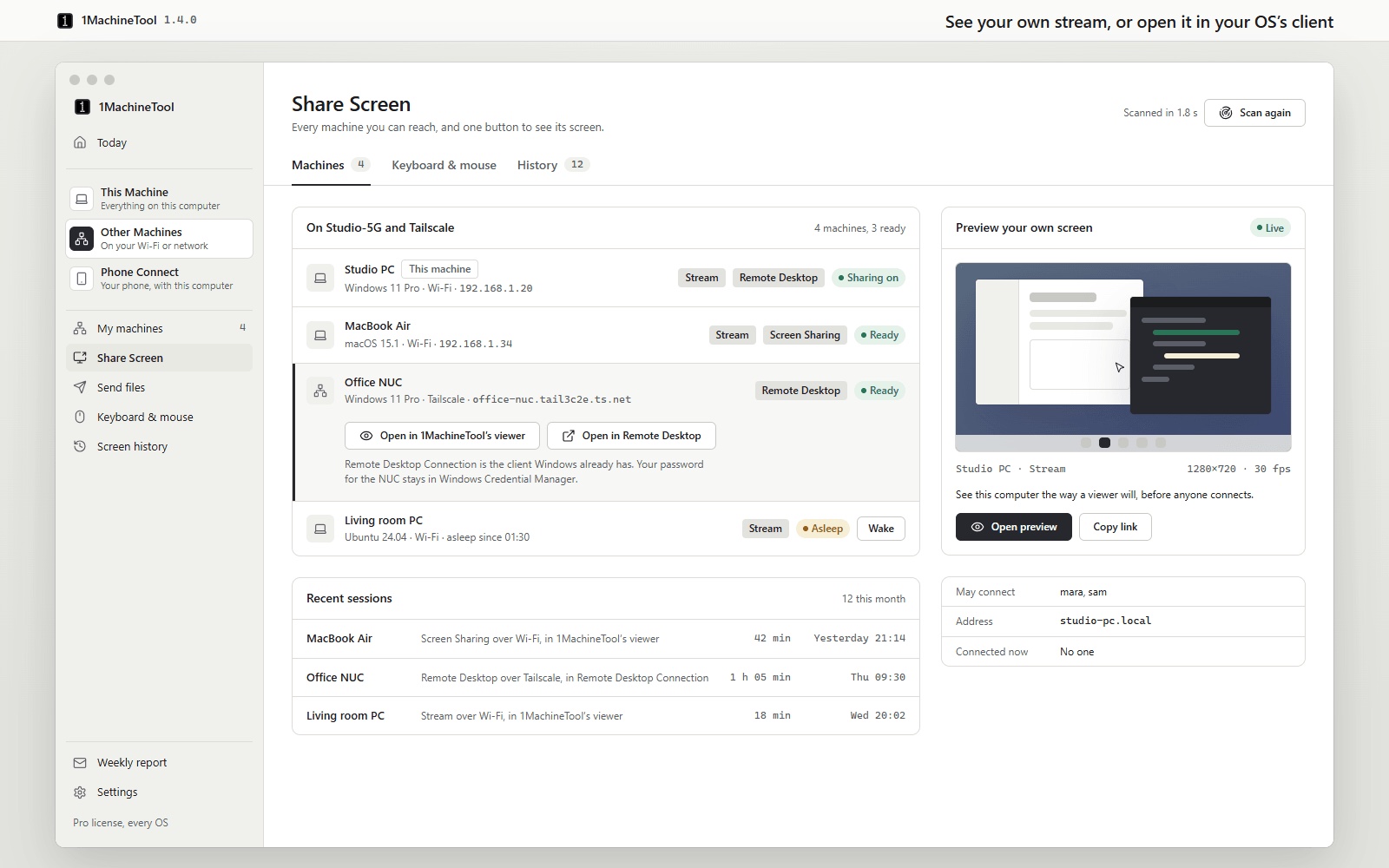
Connect's menu now offers your operating system's own remote client next to 1MachineTool's viewer: Screen Sharing on a Mac, or Windows App or Remote Desktop Connection on a PC, whichever this computer has for that machine. If you already have a favourite client, you no longer have to copy the address across.
On a Mac, Preview on the host card shows your screen the way a viewer will see it, before anyone connects. And when a Tailscale connection goes through Tailscale's shared relay, the machine's route now says "Tailscale · relayed" with how to get a direct path, and the viewer starts on lighter settings so the session stays usable.
1.4.0 also ships the computer's side of Screens on your phone, under Phone Connect. The 1MachineTool phone apps aren't in the App Store or Google Play yet, so that part waits for them.
Before vs After
| Task | Before 1.4.0 | With 1.4.0 |
|---|---|---|
| Switch the microphone before a call | Open system settings, find Sound, change the input | Hotkey, type the mic's name, Enter |
| Reconnect AirPods from another device | Open the Bluetooth settings, find them, click Connect | Hotkey, AirPods, Enter |
| Check a speaker works | Start the call and ask if anyone can hear you | Play a test sound on the Sound page |
| Find Share Screen or sending files | Scroll one long sidebar | Open the Other Machines card |
| See what changed overnight | Separate What changed? page | A tab of Today |
| Open a PC in Remote Desktop Connection | Copy the address into the client by hand | Pick it from Connect's menu |
Who benefits most
- People who live on calls. Headphones, microphones and volume are a hotkey away, on Mac and Windows alike.
- Anyone with a desk full of Bluetooth gear. One page shows every paired device with its battery, and warns before turning off the radio your keyboard needs.
- People who look after several computers. Everything about other machines now sits under one card, and Share Screen hands off to the client you already use.
Try it
1MachineTool 1.4.0 is a free update from Settings, and a free download for macOS, Windows and Linux at 1machinetool.com. Sound and Bluetooth work in the free version. Next time the wrong microphone picks up, it's one hotkey to fix.