What is taking up space on my Mac?
Updated 18 November 2026
Short answer
Usually it is a mix of large files you forgot (downloads, installers, videos, old iPhone backups) and what apps keep for themselves, which macOS files under System Data. Open System Settings › General › Storage first: it sorts the disk by category and lists the largest items in each.
Where the space usually goes.
Downloads and old installers
Disk images, installer packages, zip files and videos you opened once stay in Downloads until someone removes them.
How to tellDownloads is among the largest folders in your home folder.
System Data
Caches, logs, app support files and local snapshots. It is not one thing you can delete: it shrinks when caches are cleared and snapshots expire.
How to tellSystem Data is one of the longest sections of the bar in Storage.
Developer and app data
Xcode's build files and simulators, container images, virtual machines and game libraries each run to tens of gigabytes.
How to tellThe Developer folder in your Library, or one app's own data, is far larger than the app itself.
Photos, videos and message attachments
A photo library kept in full on the Mac, and years of attachments in Messages, add up quietly.
How to tellPhotos or Messages is a large category in Storage.
Old iPhone and iPad backups
Backups made to this Mac stay after the device is gone.
How to telliOS Files appears as a category in Storage.
The Trash and local snapshots
Deleted files still count until the Trash is emptied. Time Machine also keeps local snapshots, which macOS gives back when the space is needed.
How to tellFree space doesn't grow after you delete something large.
Find it by hand.
Start with Storage
Open System Settings › General › Storage and wait for the bar to finish calculating. Use the info button beside a category to see its largest items, and delete from there.
Find large files in Finder
In Finder press ⌘F, search This Mac, and set the rule to File Size is greater than 1 GB. The first time, add File Size from Other… in the attribute menu.
Measure folders in Terminal
This lists the 20 largest folders in your home folder and its Library, smallest first. macOS may ask to let Terminal read some of them.
du -sh ~/* ~/Library/* 2>/dev/null | sort -h | tail -n 20List local snapshots
macOS removes these on its own when space is needed, so they rarely call for action. This shows whether any exist.
tmutil listlocalsnapshots /Empty the Trash, then look again
Nothing you deleted is free space until the Trash is empty. The figure in Storage catches up a moment later.
The same job in 1MachineTool.
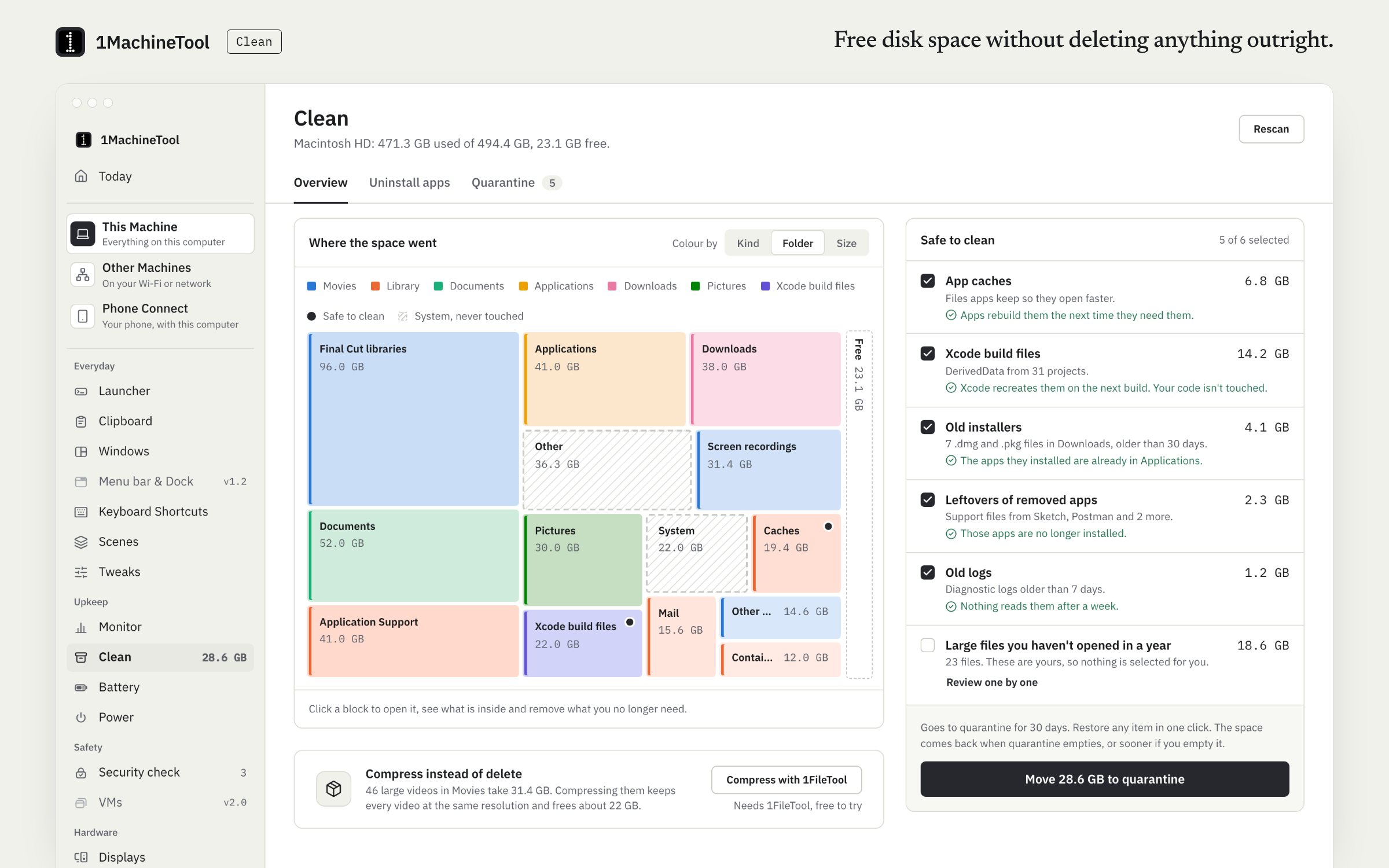
1MachineTool's Clean module scans an allow-list of places that are safe to clear and draws a map of where the space went. Nothing is deleted outright: what you remove waits 30 days in quarantine, with undo.
- Adds up what is safe to clean and says what it is. An example finding: "12 GB is safe to clean: app caches, logs and old installers."
- Lists large files and other things that are yours separately, and chooses none of them for you.
- Shows a space map, and uninstalls an app together with its leftovers.
- Says how much quarantine itself is holding. That space comes back when a batch leaves after 30 days, or at once if you empty it.
Asking the question and every finding are free and never counted. Free includes 1 cleanup a day, and restoring from quarantine is never counted. Pro, $29 once for one computer, removes the limit.
In the launcher
why is my disk full
In the terminal
1machine diagnose disk1MachineTool 1.7.0
On Windows and Linux.
On Windows, Settings › System › Storage sorts the disk by category. On Linux, Disk Usage Analyzer or du does the same. 1MachineTool's cleaner works on Linux with its own allow-list (caches, thumbnails, the Trash, old installers) and the same 30-day quarantine. The Windows build is early, and each page in the app says what works there today.
Questions.
What is System Data in Mac storage?
Everything macOS does not file under another category: caches, logs, app support files, local snapshots and files it is still sorting. It grows and shrinks on its own. You reduce it by clearing app caches and letting snapshots expire, not by deleting one folder.
Is it safe to delete the Caches folder?
Apps rebuild their caches, so clearing them is usually harmless. Delete the contents for apps that are closed, not the folder itself, and expect those apps to start more slowly once. A cleaner with undo is safer than emptying Library folders by hand.
How much free space does a Mac need?
As a rule of thumb, keep 10 to 15% of the startup disk free. macOS uses free space for swap, updates and snapshots, and it slows down when only a few per cent are left.
Does 1MachineTool delete my files?
Never outright. Clean only touches places on its allow-list, and what it removes waits 30 days in quarantine, where you can restore it. It leaves documents, mail, photos and media alone.