How do I completely uninstall an app on a Mac?
Updated 18 November 2026
Short answer
Quit the app and drag it from Applications to the Trash. That removes the app but leaves its settings, caches and support files in your Library folder. Use the app's own uninstaller if it has one, remove the leftovers by hand, or use an uninstaller that finds them, such as 1MachineTool's Clean.
Your options.
Drag it to the Trash
Removes the app itself. Its settings and data stay in your Library folder, which is what you want if you might install it again.
Best whenBest when you may come back to the app and want your settings kept.
The app's own uninstaller
Apps that install drivers, system extensions or background services often ship an uninstaller, in the app's folder or on the maker's site. It removes parts you can't drag to the Trash.
Best whenBest when the app came with an installer rather than a drag to Applications.
Remove the leftovers by hand
Look in your Library folder for folders and files named after the app or its maker, and move them to the Trash too.
Best whenBest when you want every trace gone and are happy checking names.
A cleaner with an uninstaller
Tools such as CleanMyMac include an uninstaller that lists an app with the files that belong to it.
Best whenBest when you uninstall often.
1MachineTool's Clean page
Lists the app with its leftovers and login items, and moves what you choose to a quarantine you can undo for 30 days.
Best whenBest when you want to be able to put it all back.
Uninstall by hand.
Quit the app
Quit it from its menu or its menu bar icon. If it won't quit, press ⌥⌘Esc and force it.
Move the app to the Trash
In Finder, open Applications and drag the app to the Trash. If the app has its own uninstaller, run that instead.
Find its name in the system
Leftovers are filed under the app's name or its bundle identifier. This prints the identifier; run it before you delete the app.
mdls -name kMDItemCFBundleIdentifier /Applications/Example.appRemove the leftovers
In Finder choose Go › Go to Folder, type ~/Library, and look in Application Support, Caches, Preferences, Containers, Saved Application State and LaunchAgents for that name. Move what you find to the Trash rather than deleting it at once.
Check background items
Open System Settings › General › Login Items & Extensions (Login Items on older versions) and remove anything the app left there.
The same job in 1MachineTool.
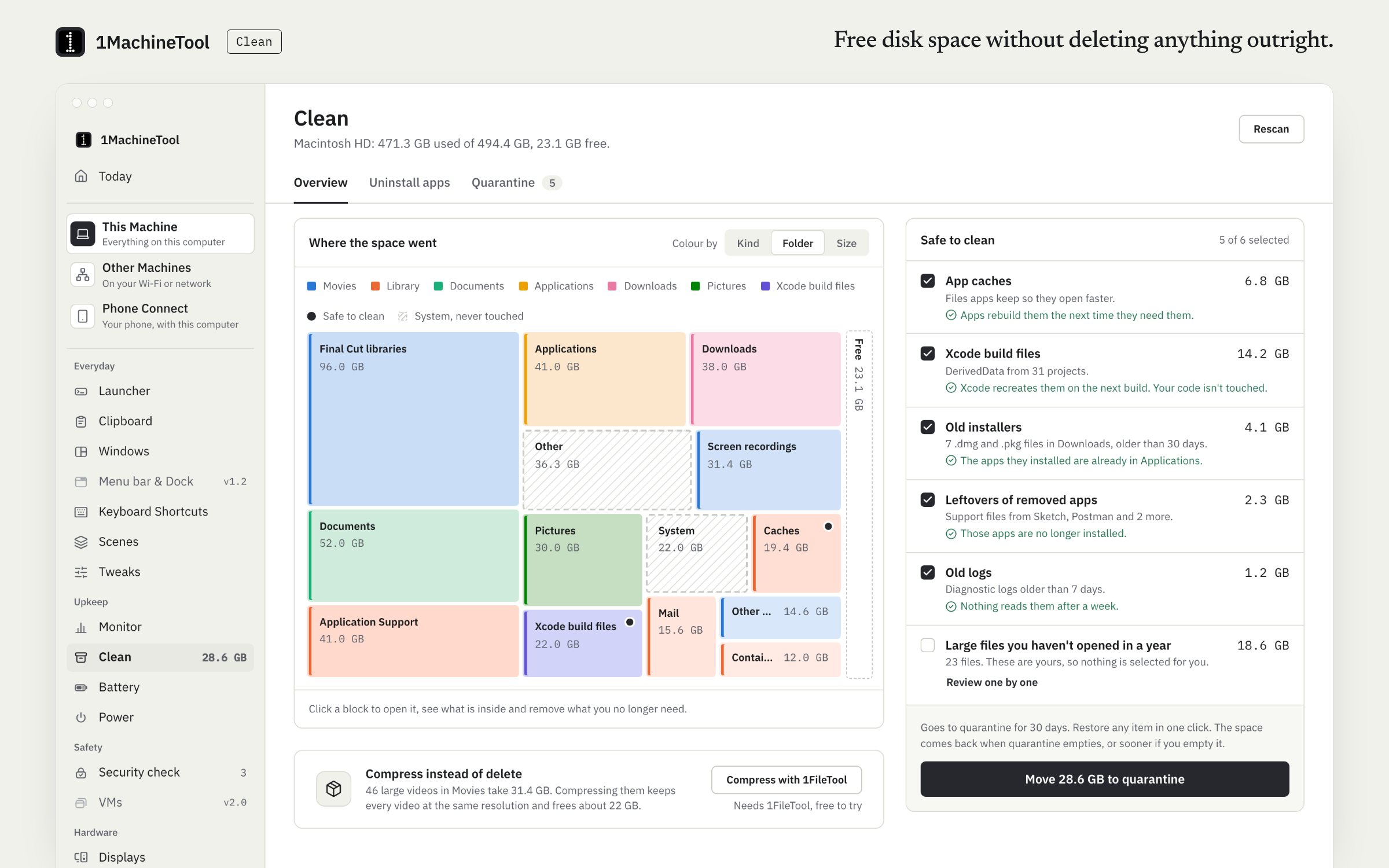
Clean's Uninstall apps tab lists your apps. Pick one and it shows the support files and login items that belong to it, and what the total comes to. The app and the files you choose move to quarantine, where they wait 30 days with an undo. Nothing is deleted outright.
- It won't uninstall an app that is open; it asks you to quit it first.
- The app's login items are removed with it.
- Files an app leaves behind later show up in Clean as leftovers of removed apps.
- In a terminal, 1machine quarantine list shows each batch and 1machine quarantine restore puts one back.
Uninstalling is on Free, and restoring from quarantine is never counted. Clean's category cleanups, such as caches and old installers, are 1 a day on Free and unlimited with Pro.
On Windows and Linux.
On Windows 11, use Settings › Apps › Installed apps and choose Uninstall. On Linux, 1MachineTool moves AppImages and locally installed apps to quarantine with the files you choose; for an app from apt, snap or Flatpak it gives you the package manager's command and moves nothing.
Questions.
Does dragging an app to the Trash remove everything?
No. It removes the app, but its preferences, caches and support files stay in your Library folder. They are usually small; for some apps they run to gigabytes.
Is it safe to delete files from the Library folder?
Only the ones clearly named after the app or its maker. If you're not sure what something is, leave it. Move files to the Trash and use the Mac for a few days before you empty it.
Why won't an app go in the Trash?
Usually because it, or a helper it runs, is still open. Quit it, check the menu bar for its icon, and try again. Apps that are part of macOS, such as Safari and Mail, can't be removed.
Can I undo an uninstall?
By hand, only until you empty the Trash. In 1MachineTool the app and its files wait in quarantine for 30 days, and one click restores them to where they were.