How do I hide menu bar icons on a Mac?
Updated 18 November 2026
Short answer
Hold ⌘ and drag an icon off the menu bar to remove it, or switch it off in System Settings › Menu Bar (Control Center before macOS 26), which now lists other apps' icons too. macOS has no hidden row of its own. To tuck icons away and bring them back on hover, use a menu bar organiser or 1MachineTool.
Your options.
Remove the icon
Hold ⌘ and drag one of macOS's own icons, such as Wi-Fi or Bluetooth, off the bar. Other apps usually have a setting of their own to stop showing in the menu bar.
Best whenBest when there are only a few icons you never use.
Switch items off in System Settings
The Menu Bar settings list the system's items with a choice to show each one in the menu bar or not, a switch for each other app under Allow in the Menu Bar (macOS 26 or later), and a setting to hide the whole bar until you move the pointer to the top.
Best whenBest when there are icons you never need to see.
A menu bar organiser
Apps such as Bartender and Ice add a hidden section to the menu bar. Icons you move there stay out of sight until you hover, click or press a hotkey.
Best whenBest when you need the icons sometimes, but not all day.
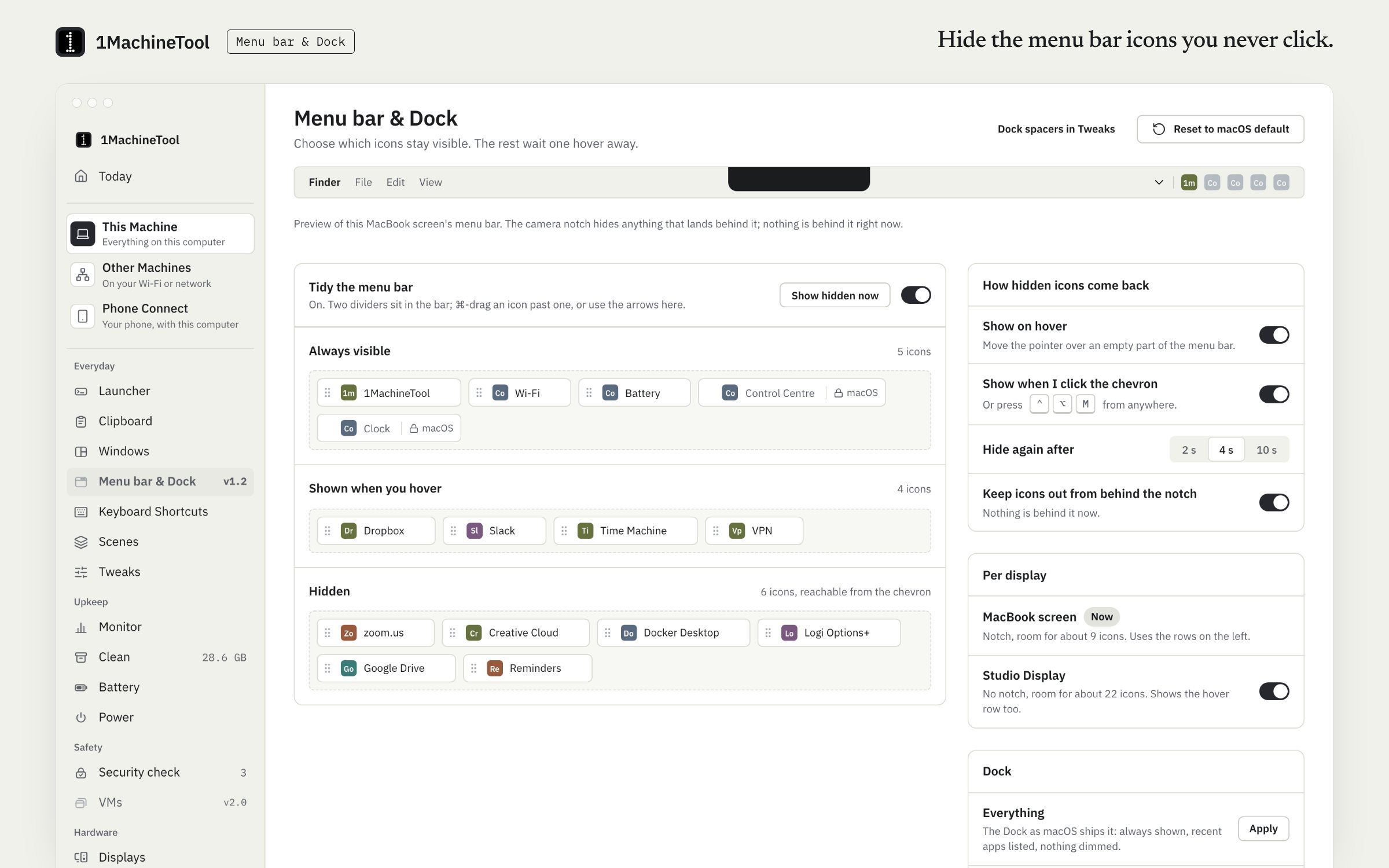
1MachineTool's Menu bar page
Three rows: always shown, shown on hover, and hidden. It also replaces several of the apps that put icons there in the first place.
Best whenBest when you'd rather have fewer menu bar apps than better-hidden ones.
Tidy it with what macOS has.
Rearrange
Hold ⌘ and drag any menu bar icon left or right. Put the ones you use nearest the clock.
Remove a system icon
Hold ⌘, drag the icon down off the menu bar and let go. This works for macOS's own items; most other apps' icons snap back.
Switch items off in settings
Open System Settings › Menu Bar (Control Center before macOS 26) and choose, item by item, what shows in the menu bar.
Deal with other apps' icons
On macOS 26 or later, switch the app off under Allow in the Menu Bar in the same pane. Before that, open the app's own settings and look for a menu bar or status icon option. If it has none, quitting the app removes its icon.
Hide the whole bar
In the same settings pane, set the menu bar to hide and show automatically. It slides away until the pointer reaches the top of the screen.
The same job in 1MachineTool.
Menu bar adds two thin dividers of its own to the menu bar. Icons right of them always show, icons between them show on hover, and icons to the left stay hidden until you ask. The hidden rows come back when you hover, click the chevron or press ⌃⌥M.
- It reads the real icons over Accessibility, so the page lists each one by its app.
- With Pro you choose a row on the page and 1MachineTool does the ⌘-drag for you.
- It knows about the notch and keeps a layout per display.
- The launcher, clipboard, monitor, cleaner, battery and keep-awake tools share one tray icon, so those apps' icons can go.
The three rows are on Free; you ⌘-drag icons past the dividers yourself. Moving icons for you and Dock presets are part of Pro.
In the terminal
1machine menubar toggle1MachineTool 1.7.0
On Windows and Linux.
On Windows 11, Settings › Personalisation › Taskbar › Other system tray icons decides which icons sit beside the clock. 1MachineTool's menu bar tidying is for macOS. It isn't offered on Linux, where GNOME's top bar has no app icons to move.
Questions.
Why are some menu bar icons missing on my MacBook?
On a MacBook with a notch, icons that don't fit beside it are simply not drawn, and macOS shows no sign that they are there. Remove or hide a few icons and the missing ones come back.
How do I rearrange menu bar icons?
Hold ⌘ and drag an icon left or right. macOS keeps the clock and Control Center at the right-hand end.
Can I hide Control Center or the clock?
No. macOS keeps Control Center and the clock in the menu bar, and organisers can't move them. You can make the clock smaller by switching it to the analogue style in the clock options.
Why does 1MachineTool need Accessibility for the menu bar?
Reading which icons are there, and moving them, goes through macOS's Accessibility interface. It asks once, when you turn the module on. macOS keeps Control Center, the clock and Siri where they are.