Keyboard & mouse · Other machines
One keyboard and mouse for the computers on your desk.
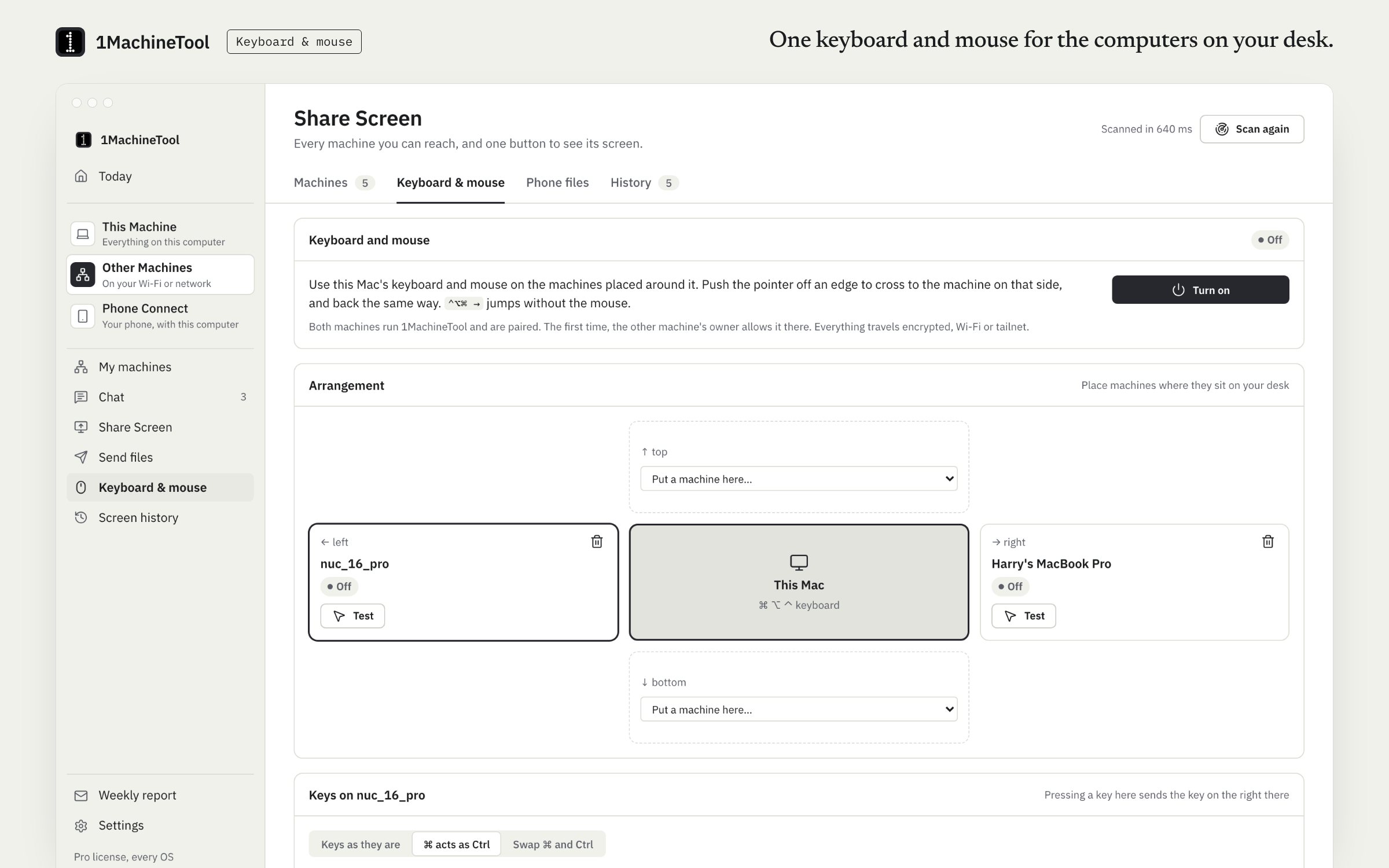
Keyboard & mouse is a tab of Share Screen. Place your paired machines around this one the way they sit on your desk, then push the pointer off an edge to carry on, and type, on the machine on that side. Everything travels encrypted, and the other machine's owner allows it the first time.
Checked against 1MachineTool 1.7.0, 18 November 2026
What it does.
- Arrange them like your desk
- Put each paired machine on the side of this one where it really sits.
- Cross at the edge
- Push the pointer off that edge and it carries on there. A hotkey plus an arrow jumps without the mouse, and Bring back here returns.
- A key map per machine
- ⌘ becomes Ctrl by default between a Mac and a PC, or set your own. Each machine also has its own scroll direction and pointer speed.
- Test the link
- Test wiggles the pointer on the other machine to prove the link works.
- Consent and encryption
- The other machine's owner allows it the first time, and every key and movement is encrypted on the way. A password field with Secure Input on keeps its keys on this Mac.
How you use it.
- Pair the two computers in Share Screen: one shows a six-digit code, the other types it.
- Open Share Screen › Keyboard & mouse and place the other machine on the side where it sits.
- Allow it on the other machine the first time it asks.
- Push the pointer off that edge and type.
From the terminal
1machine screen kvm status- The links, where each stands, and who may drive this machine.
1machine screen kvm place <machine> right- Put a paired machine at an edge: left, right, top or bottom.
1machine screen kvm test <machine>- Draw a small circle with that machine's pointer, to prove the link.
Free and Pro.
Free
Included on Free and Pro.
On your computer.
- macOS
- Shares its keyboard and mouse, and can be driven by another machine. Both need Accessibility permission.
- Windows
- Shares its keyboard and mouse, and can be driven by another machine. The Ctrl+Alt+Del screen and administrator prompts cannot be driven.
- Linux
- Can be driven from another machine's keyboard and mouse, but cannot share its own: Wayland lets no app watch the keyboard. On Wayland, approve “Remote interaction” on that screen the first time.
What it doesn’t do.
- Both computers need 1MachineTool, paired, on the same Wi-Fi or the same Tailscale network.
- The clipboard does not cross with the pointer.
- Shortcuts are not translated beyond the key map: ⌘Q does not become Alt+F4.
- A Linux machine can be driven but cannot share its own keyboard and mouse.
Questions.
Can I use one keyboard and mouse for a Mac and a Windows PC?
Yes. Install 1MachineTool on both, pair them with a six-digit code, and place the PC at an edge of the Mac in Share Screen › Keyboard & mouse. ⌘ is sent as Ctrl by default.
Does copy and paste follow the pointer?
No. The clipboard stays on each machine. To move text or a file, use Chat between the two machines.
Is what I type encrypted?
Yes. The link is opened with the pairing secret and every key and movement after that is encrypted. On a Mac, keys typed into a password field with Secure Input on are not sent.
Does it work with Linux?
One way. A Linux machine can be driven from a Mac's or PC's keyboard and mouse, but cannot share its own, because Wayland lets no app watch the keyboard.