How do I share one keyboard and mouse between a Mac and a PC?
Updated 18 November 2026
Short answer
Nothing built into macOS or Windows does this across the two. Universal Control joins Macs and iPads only. For a Mac and a PC, use a KVM switch, a keyboard and mouse that switch between devices, or software on both computers that moves the pointer across the screen edge, such as 1MachineTool.
Your options.
Universal Control
Built into macOS. One keyboard and pointer move between Macs and iPads signed in to the same Apple Account. It does not include Windows or Linux.
Best whenBest when both computers are Macs.
Mouse Without Borders
Part of Microsoft's PowerToys. It shares a keyboard and mouse between Windows PCs only.
Best whenBest when both computers run Windows.
A KVM switch or multi-device peripherals
A KVM switch moves one keyboard, mouse and often a display between two computers at the press of a button. Many keyboards and mice also pair with several computers and switch with a key.
Best whenBest when you want no software and don't mind pressing a button to switch.
Software on both computers
A sharing app sends your keys and pointer over the network. Both screens stay on, and you cross from one to the other at the screen edge.
Best whenBest when the two screens sit side by side on one desk.
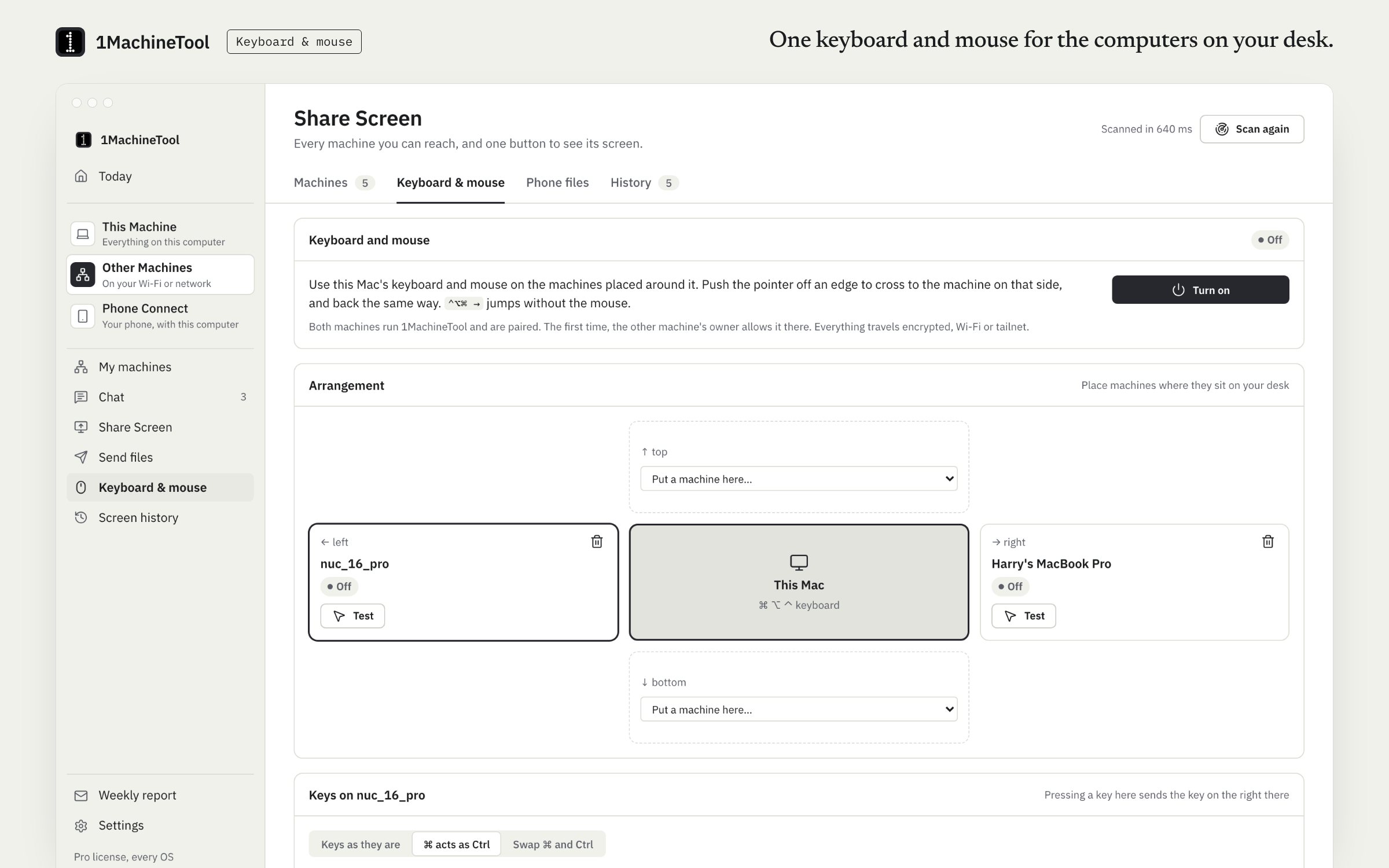
1MachineTool's Keyboard & mouse tab
Software sharing between Macs and PCs that run 1MachineTool, set up by placing the machines the way they sit on your desk.
Best whenBest when you already use 1MachineTool on both, or want one tool for screens and input.
Check what you already have.
Which route fits depends on the pair of computers.
Two Macs: turn on Universal Control
Open System Settings › Displays › Advanced and allow the pointer and keyboard to move between nearby Macs and iPads. Both must use the same Apple Account.
Two PCs: use Mouse Without Borders
Install PowerToys on both PCs and open Mouse Without Borders. Select New Key on one, then enter that security key and the first PC's name on the other and select Connect.
A Mac and a PC, without software
Pair a multi-device keyboard and mouse with both computers and switch with their device key, or plug both computers into a USB KVM switch.
A Mac and a PC, with software
Install the same sharing app on both, keep them on the same network and arrange the screens in the app. On the Mac, allow it under System Settings › Privacy & Security › Accessibility, or it can't move the pointer.
The same job in 1MachineTool.
Share Screen's Keyboard & mouse tab places your paired machines around this one, the way they sit on your desk. Push the pointer off an edge and it crosses to the machine on that side, and you type there. A hotkey with an arrow jumps without the mouse, and Bring back here returns.
- Each machine has its own key map: ⌘ becomes Ctrl between a Mac and a PC by default, or set your own.
- Reverse scrolling and pointer speed are set per machine, and Test wiggles the pointer there to prove the link.
- The other machine's owner allows it the first time, and everything travels encrypted.
- A password field with Secure Input on keeps its keys on this Mac.
Keyboard & mouse works with the machines you have paired in Share Screen. Free covers 2 machines there; Pro has no limit.
In the terminal
1machine screen kvm place studio-pc right1MachineTool 1.7.0
On Windows and Linux.
Both computers need 1MachineTool, and the Windows build is still early. A Linux PC can be driven from another machine's keyboard and mouse; on a Wayland session it can't share its own, because Wayland lets no app watch the keyboard, and the page says so.
Questions.
Does Universal Control work with Windows?
No. Universal Control works between Macs and iPads signed in to the same Apple Account. Apple offers nothing that reaches a Windows PC.
What is the difference between a KVM switch and software sharing?
A KVM switch moves the physical connection, so one computer has the keyboard at a time and it works before either system has started. Software sends keys over the network: both screens stay live, but both computers must be running and signed in.
Do the Mac's shortcuts work on the PC?
With a key map, yes. 1MachineTool turns ⌘ into Ctrl by default when you cross from a Mac to a PC, so ⌘C copies there, and you can change the map per machine.
Do both computers need to be on the same network?
For software sharing, yes: the keys and pointer travel over the network between them. A wired connection or strong Wi-Fi keeps the pointer smooth.