How do I limit my MacBook's charging to 80%?
Updated 18 November 2026
Short answer
Open System Settings › Battery and click the ⓘ beside Charging. macOS 26.4 or later on Apple silicon has a Charge Limit you can set to 80%; older versions have only Optimized Battery Charging, which holds at 80% only when it expects a long charge. A limiter app or 1MachineTool Pro holds 80% on any supported Mac.
Your options.
The charge limit in macOS
macOS 26.4 or later on Apple silicon lets you pick the level the battery stops at, from 80% to 100%, in System Settings › Battery. Nothing to install. Now and then macOS still charges to 100% to keep its charge reading accurate.
Best whenBest when your Mac shows the setting and 80% is all you want.
Optimized Battery Charging
On by default. macOS learns your routine and waits at 80% until shortly before it expects you to unplug. It decides when to hold, so some days it charges straight to 100%.
Best whenBest when you plug in at the same times every day.
A dedicated battery limiter
Apps such as AlDente exist only for this job. They offer limits other than 80% and extra charging modes, at the cost of one more app in the menu bar.
Best whenBest when you want a limit other than 80%, or fine control over charging.
1MachineTool's Battery page
Sets the 80% hold point Apple silicon offers, shows health, cycles and wear history beside it, and has a button to charge to 100% once.
Best whenBest when you also want to know what is draining the battery.
Set it in macOS.
This needs nothing installed. The wording differs a little between macOS versions.
Open the battery settings
Choose Apple menu › System Settings, then Battery in the sidebar.
Set the limit, if your Mac has one
Click the ⓘ beside Charging and set Charge Limit to 80%. If there is no such setting, your Mac or its version of macOS has Optimized Battery Charging only.
Otherwise, turn on Optimized Battery Charging
Click the ⓘ beside Charging, or beside Battery Health if your version has no Charging row, and switch on Optimized Battery Charging. It is on by default, so it may already be.
Check that it is holding
Leave the Mac plugged in and run this in Terminal. When the limit holds, the line shows the percentage, AC attached and not charging.
pmset -g battCharge to full before a trip
Click the battery icon in the menu bar and choose Charge to Full Now, or raise the limit for the day.
The same job in 1MachineTool.
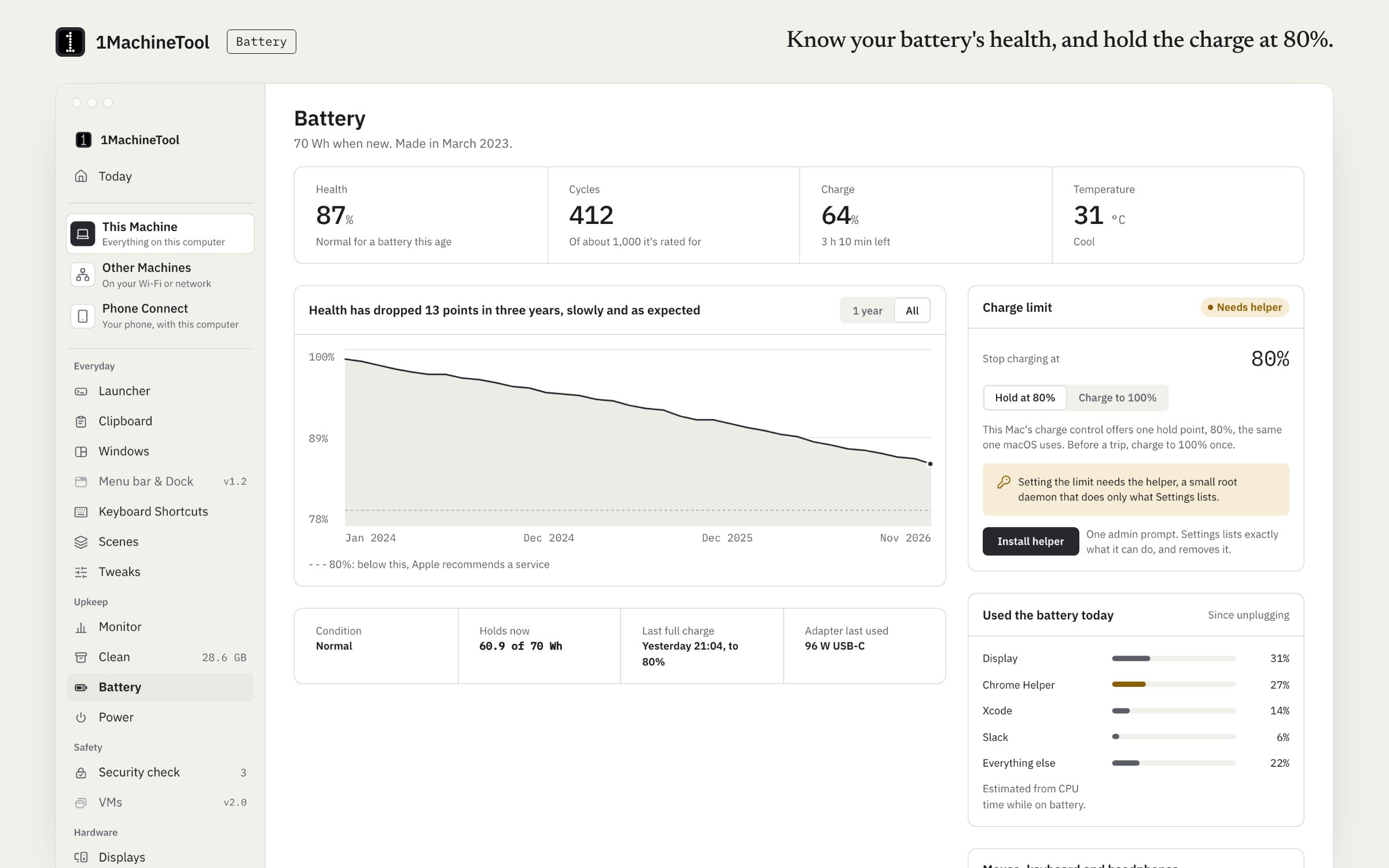
Battery reads the charge limit from the Mac's own controller and sets it through a small helper you install with one admin prompt. On Apple silicon that is the one hold point the controller offers, 80%. The same page shows health, cycles, wear history, usage today and the batteries of your mouse, keyboard and earbuds.
- Charge to 100% once, for a travel day; the limit comes back by itself.
- The helper answers a fixed list of operations, only for the user who installed it, and Settings removes it again.
- Ask the launcher why the battery is draining and it names the app.
- In a terminal, 1machine battery prints health and charge.
Battery health, cycles and wear history are on Free. The charge limit is part of Pro: $29 once for one computer, with a year of updates.
On Windows and Linux.
On a Windows laptop the limit usually lives in the maker's own utility or in the firmware settings. On Linux, 1MachineTool reads battery health from the system and uses the charge thresholds the laptop's firmware offers, through UPower; laptops whose firmware has none can't be limited.
Questions.
Is stopping at 80% really better for the battery?
Lithium-ion cells age faster the longer they sit full and warm. Holding at 80% cuts the time spent at 100%, which slows the loss of capacity. It matters most for a MacBook that lives on its charger.
Can I leave my MacBook plugged in all the time?
Yes. With a charge limit or Optimized Battery Charging on, the Mac runs from the adapter and holds the battery below full. Unplug it now and then if you never use it on battery.
Why does my MacBook stop charging at 80%?
A charge limit or Optimized Battery Charging is holding it there on purpose. Click the battery icon in the menu bar to see why, and choose Charge to Full Now when you need 100%.
Why does 1MachineTool need a helper for the charge limit?
Changing the charge limit needs root. 1MachineTool installs one small helper with one admin prompt; it answers a fixed list of operations and you can remove it in Settings. Reading battery health needs no helper.