Why is my Mac so hot, and why is the fan loud?
Updated 18 November 2026
Short answer
Heat comes from work. Almost always one app, browser tab or background job has been using the CPU for a long time, and the fan follows. Open Activity Monitor's CPU tab and sort by % CPU: quit what sits on top, and the Mac cools within minutes.
The usual causes.
An app or tab has been working hard for a long time
Video calls, exports, games, a build, or a web page stuck in a loop keep the chip busy, and a busy chip is a hot one.
How to tellOne process stays well above half a core in Activity Monitor's CPU tab for many minutes.
Background work after an update or a big import
Spotlight indexing, Photos going through a library or a first backup can run the chip hard for a few hours. It stops on its own.
How to tellmds, mdworker, photoanalysisd or backupd lead the CPU tab, and the Mac was updated or restored recently.
The heat has nowhere to go
On a bed, a sofa or a lap the vents are covered, and in a hot room or direct sun the Mac starts warm. Apple's stated range for Mac laptops is 10° to 35° C around them.
How to tellIt is hot even when Activity Monitor shows little work.
macOS is slowing the chip to cool it
When the chip gets too warm, kernel_task takes CPU time away from apps on purpose. It is the cooling, not the cause.
How to tellkernel_task leads the CPU tab with a very high figure, and everything feels slow as well as hot.
An external display while charging
Driving a large display adds graphics work, and charging adds heat of its own, so a docked laptop runs warmer than the same one on its own.
How to tellIt runs warm only at the desk, plugged into the display.
A MacBook Air with no fan
Fanless models can't push heat out, so they get warm to the touch and slow down under long loads instead of making noise.
How to tellNo fan noise at all, a warm case above the keyboard, and long jobs that get slower as they go.
Check it by hand.
Find the work first. The heat follows it.
Find what is working
Open Activity Monitor and sort the CPU tab by % CPU. Then look at the Energy tab: Energy Impact is what each app is costing now, and 12 hr Power is the last half day. Quit the app on top if it is yours and you don't need it.
Read kernel_task correctly
If kernel_task is on top, the Mac is already too warm and macOS is holding work back to cool it. You can't quit it. Look at the rows below it, or at what you were running a few minutes ago.
Ask macOS whether it is throttling
This prints a thermal or performance warning level when macOS has slowed the chip because of heat. "No thermal warning level has been recorded" means it has not.
pmset -g thermGive it air
Put the laptop on a hard, flat surface, keep the vents along the hinge clear and move it out of direct sun.
Wait out indexing
If the busy processes are Spotlight's or Photos' after an update, leave the Mac plugged in. It settles within hours, and there is nothing to fix.
The same job in 1MachineTool.
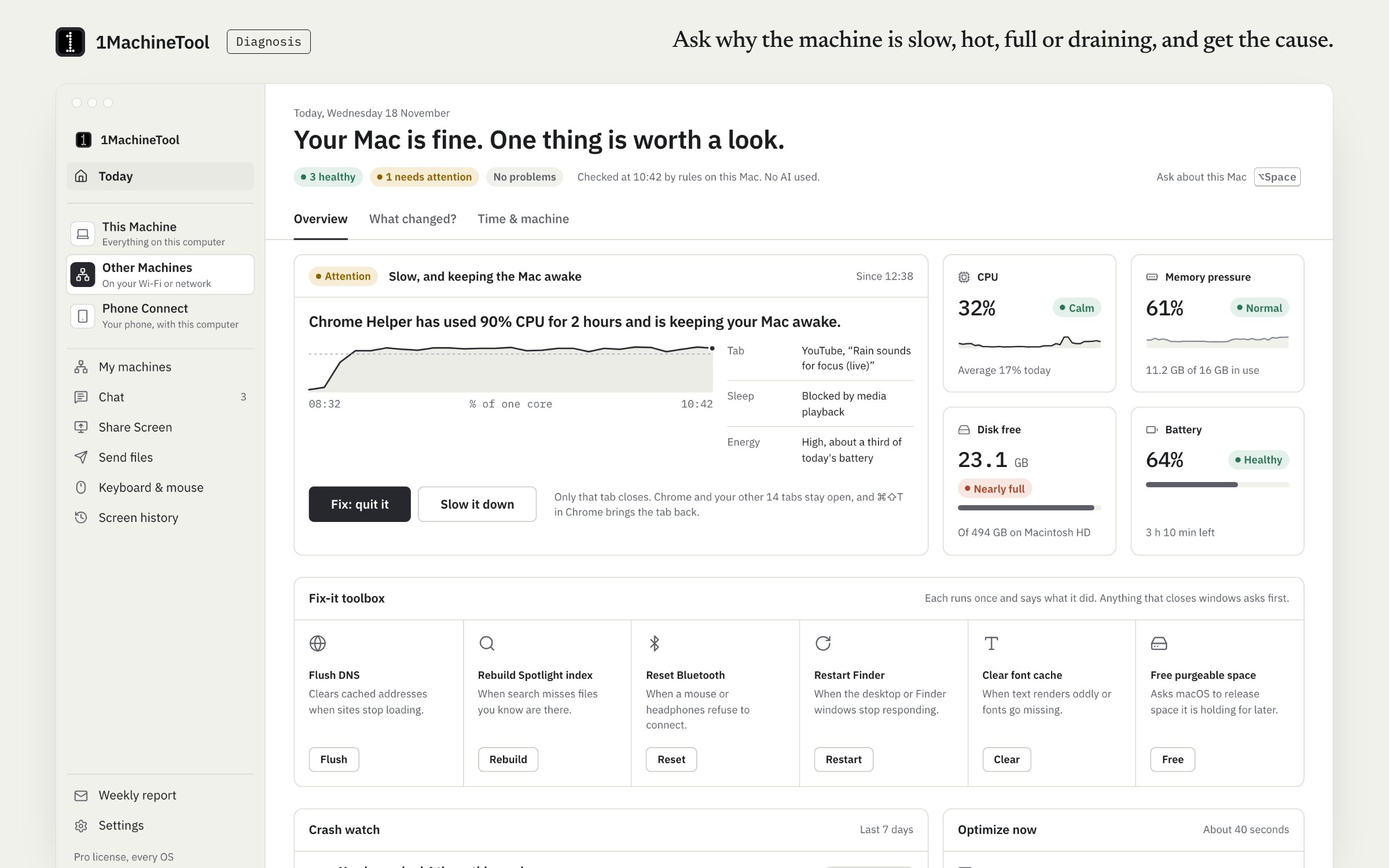
1MachineTool reads the chip's temperature without a kernel driver and keeps a history of CPU by process, so it can tell a short burst from an hour of work.
- Names the process that has been warming the Mac, with how long, a chart, and Quit it or Slow it down.
- Recognises thermal throttling and says so in plain words. An example finding: "Your Mac is holding work back to cool down (kernel_task at 240%). Give it air and close heavy apps."
- Shows the chip temperature and flags it from 85 °C. It does not show fan speed or control the fan.
- Tells you when the heat is background work that settles on its own, so you know there is nothing to fix.
Asking the question and every finding are free and never counted. On Free, 3 fixes a day. Pro, $29 once for one computer, removes the daily limits.
In the launcher
why is it hot
In the terminal
1machine diagnose hot1MachineTool 1.7.0
On Windows and Linux.
On Windows, sort Task Manager's Processes tab (Ctrl+Shift+Esc) by CPU. On Linux, use System Monitor or top. On Linux 1MachineTool reads temperatures from the kernel's own sensors and answers the same question; it is tested on Ubuntu with GNOME. The Windows build is early, and each page in the app says what works there today.
Questions.
Is it bad for a Mac to run hot?
Short bursts are normal: the chip is built to run warm under load, and macOS slows it before heat does damage. Hours of heat every day age the battery faster, so it is worth finding the cause when the Mac is hot while you are doing little.
How do I check my Mac's temperature without an app?
macOS has no built-in readout in degrees. What it has is Activity Monitor for the cause, and the pmset -g therm command, which says whether the system is slowing the chip because of heat. For a number, you need an app.
Why is the fan loud when I am not doing anything?
Something is still working: Spotlight indexing after an update, a backup, a browser tab in the background or a sync client. Sort Activity Monitor's CPU tab by % CPU to see it. If nothing is busy, check the room and the vents.
Can 1MachineTool control the fan?
No. It does not set fan speeds, and it installs no kernel drivers. It finds what is making the heat and offers to quit it or slow it down.