Why is my MacBook battery draining so fast?
Updated 18 November 2026
Short answer
Most often one app is using far more energy than the rest, something is keeping the screen on, or the battery has aged and holds less. Click the battery icon in the menu bar first: macOS lists the apps using significant energy there.
The usual causes.
One app is using most of the energy
A browser with many tabs, a video call, a chat app built on web technology, or anything rendering or syncing can use more than everything else together.
How to tellThe battery menu names it under Using Significant Energy, or it leads the Energy Impact column in Activity Monitor.
The screen stays bright, or never turns off
The display is the largest steady draw on a laptop. An app that plays video or holds a presentation keeps it lit.
How to tellBrightness is near full, or the screen never dims when you step away.
The Mac isn't really sleeping
If something holds it awake or keeps waking it, the battery drains with the lid closed.
How to tellThe charge drops by many per cent overnight with the lid shut.
The battery has aged
Every battery holds less as it is used, so a full charge lasts less than it did.
How to tellMaximum Capacity under Battery Health is below about 80%, or macOS shows Service Recommended.
Background work after an update
Indexing and photo analysis after an update or a restore use real energy for a few hours, then stop.
How to tellThe drain started with an update, and mds or photoanalysisd lead Activity Monitor's Energy tab.
Things plugged into the ports
A phone charging from the Mac, a bus-powered drive or a hub all draw from the battery.
How to tellThe battery lasts noticeably longer with nothing connected.
Check it by hand.
Ask the battery menu
Click the battery icon in the menu bar. macOS lists the apps Using Significant Energy right there, or says that none are.
Rank apps by energy
Open Activity Monitor and choose the Energy tab. Sort by Energy Impact for what is costing power now, and by 12 hr Power for the last half day.
Read the history
System Settings › Battery charts the battery level and Screen On Usage over the last day and the last ten days. A steep drop while the screen was off points to sleep, not to an app you were using.
Check the battery's health
System Settings › Battery shows Battery Health, and its info button shows Maximum Capacity. Terminal prints the same figures with the cycle count:
system_profiler SPPowerDataType | grep -e "Cycle Count" -e "Condition" -e "Maximum Capacity"Stretch a charge
In System Settings › Battery, set Low Power Mode to Only on Battery (where the pane shows Energy Mode, set On battery to Low Power), and lower the brightness. Both cost a little speed and save a lot of power.
The same job in 1MachineTool.
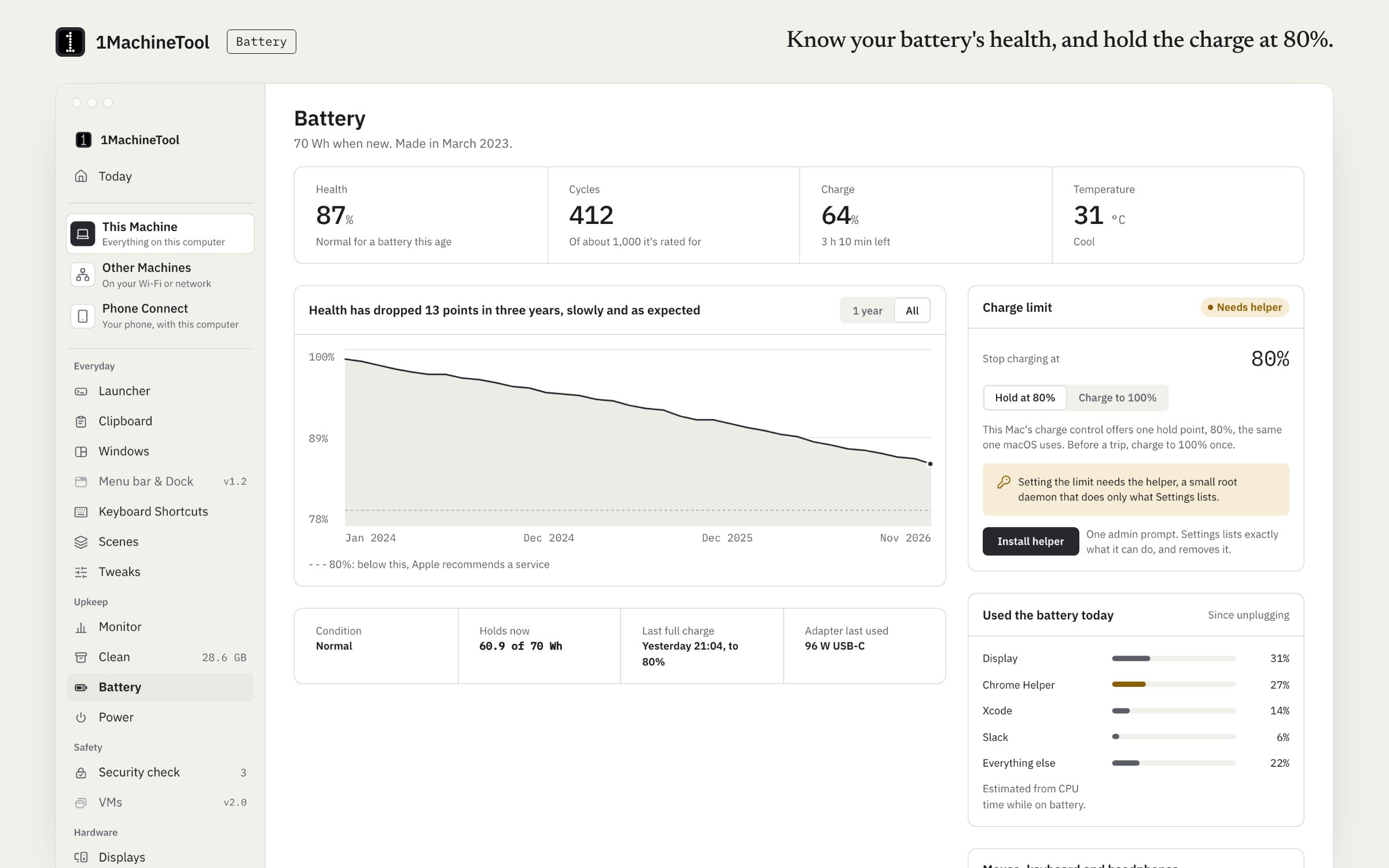
1MachineTool records which apps did the work while the Mac was unplugged, so it can name what has drained the battery since you last disconnected the charger.
- Names an app that has used 30% or more of the battery's work since you unplugged, with the next few for comparison. The share is estimated from CPU time on battery.
- Says when an app is keeping the screen on, which uses the most power of anything.
- Reports health and cycles, and flags a battery that holds under 80% of its original charge. An example finding: "Battery at 91% health after 412 cycles. A charge limit of 80% slows the wear."
- The Battery page adds wear history, usage today and the batteries of connected peripherals.
Asking the question and every finding are free and never counted. Battery health, cycles and wear history are free. The charge limit, lid-closed mode and scheduled Low Power Mode are part of Pro ($29 once for one computer) and need the app's small helper.
In the launcher
why is the battery draining
In the terminal
1machine diagnose battery1MachineTool 1.7.0
On Windows and Linux.
On Windows, Settings › System › Power & battery shows battery use per app. On Linux, 1MachineTool reads battery health from the kernel and the firmware's own charge thresholds; it is tested on Ubuntu with GNOME. The Windows build is early, and each page in the app says what works there today.
Questions.
Why does my MacBook battery drain while it is asleep?
Either something stops it sleeping fully, or it keeps waking: network access, a Bluetooth device or scheduled background work. A few per cent overnight is normal. For more than that, look at what is preventing sleep and what woke it.
How do I check MacBook battery health without an app?
Open System Settings › Battery and look at Battery Health. For the cycle count, hold Option, open the Apple menu, choose System Information and select Power.
Is 80% battery health bad?
It is the usual point where a full charge feels clearly shorter. Apple designs its laptop batteries to keep up to 80% of their capacity at their maximum cycle count, which is 1,000 on current models. Below that, macOS may show Service Recommended.
Does a charge limit help the battery last?
Yes. A lithium battery that is not kept full all the time wears more slowly. macOS has Optimized Battery Charging and, from macOS 26.4 on Apple silicon, a Charge Limit in System Settings › Battery, and 1MachineTool Pro can set the limit and charge to 100% once for a travel day.